· 5 min read
How to share a Gmail inbox with your team (4 ways, honestly compared)
Password sharing, delegation, Google Groups, and a shared inbox tool: what each method actually does, where it breaks, and how to pick one for support@.
Every team hits this moment: support@ or sales@ lives in one person's Gmail, a second person needs access, and suddenly you're deciding how to share an inbox. Gmail gives you three built-in options, and none of them were designed for a team answering customers together. Here's what each one actually does, where it breaks, and when it makes sense to move to a dedicated tool.
Option 1: Share the password
The default move, because it takes thirty seconds. Everyone logs into the same Google account and answers from it.
Where it works: two people, low volume, high trust, and you're both in the same room often enough to shout "I've got this one."
Where it breaks:
- Google flags simultaneous logins from different locations as suspicious activity, and can lock the account right when a customer is waiting.
- There's no record of who sent what. Every reply looks the same, so accountability is a group memory exercise.
- Two people can draft replies to the same email at the same time and the customer gets answered twice, or each person assumes the other has it, and the customer gets answered never.
- If you have two-factor authentication on (you should), every login turns into a "can someone send me the code" thread.
- When someone leaves the team, you rotate the password everywhere, for everyone.
Password sharing also usually violates Google's terms for Workspace accounts, which expect one human per account.
Option 2: Gmail delegation
Gmail lets an account owner grant other people access to read and send from their mailbox: Settings → Accounts → "Grant access to your account." Delegates open the inbox from their own Google account, with no shared password.
If you are setting this up in a company Workspace, follow the step-by-step Google Workspace shared mailbox guide. It covers the admin setting, account-versus-alias distinction, delegates, and Google Groups Collaborative Inbox.
Where it works: an assistant managing an executive's inbox, or one person covering another's mail during a vacation. That's the use case it was built for.
Where it breaks for teams:
- Delegation caps out quickly: standard Gmail allows 10 delegates, and Workspace admins can raise it, but performance degrades with heavy concurrent use.
- There's still no assignment or status. Delegates see one undifferentiated inbox with no way to mark "mine," "in progress," or "done." Teams end up marking emails unread as a workflow, which collapses the moment two people do it.
- Sent mail says "sent by" the delegate, which is fine for an assistant but odd for a support team.
- No internal discussion. If you need a teammate's input before replying, that conversation happens in Slack, disconnected from the email it's about.
Option 3: Google Groups collaborative inbox
Google Groups has a "collaborative inbox" mode: create a group like support@yourcompany.com, add your team as members, and turn on the collaboration features. Members can "take" a conversation, assign it, and mark it complete.
This is Google's real answer to shared team email, and it's genuinely free with Workspace. It's also the option people regret most, because it looks like a shared inbox tool until you use it daily.
Where it works: internal groups, low-stakes external addresses, teams that mostly need "everyone can see this mail" rather than "we work this queue together."
Where it breaks:
- The interface is Google Groups, not Gmail. It's a separate site with a forum-style UI, no snooze, no schedule-send, and a search that's noticeably weaker than Gmail's.
- Assignments exist but are easy to miss. There's no notification pressure, so "taken" conversations quietly go stale.
- No draft visibility. You can't see that a teammate is mid-reply, so duplicate answers still happen.
- No internal notes on a conversation. Context lives elsewhere.
- Replies come from the group address with limited control over formatting, signatures, and threading quirks that customers do notice.
Option 4: A shared inbox tool
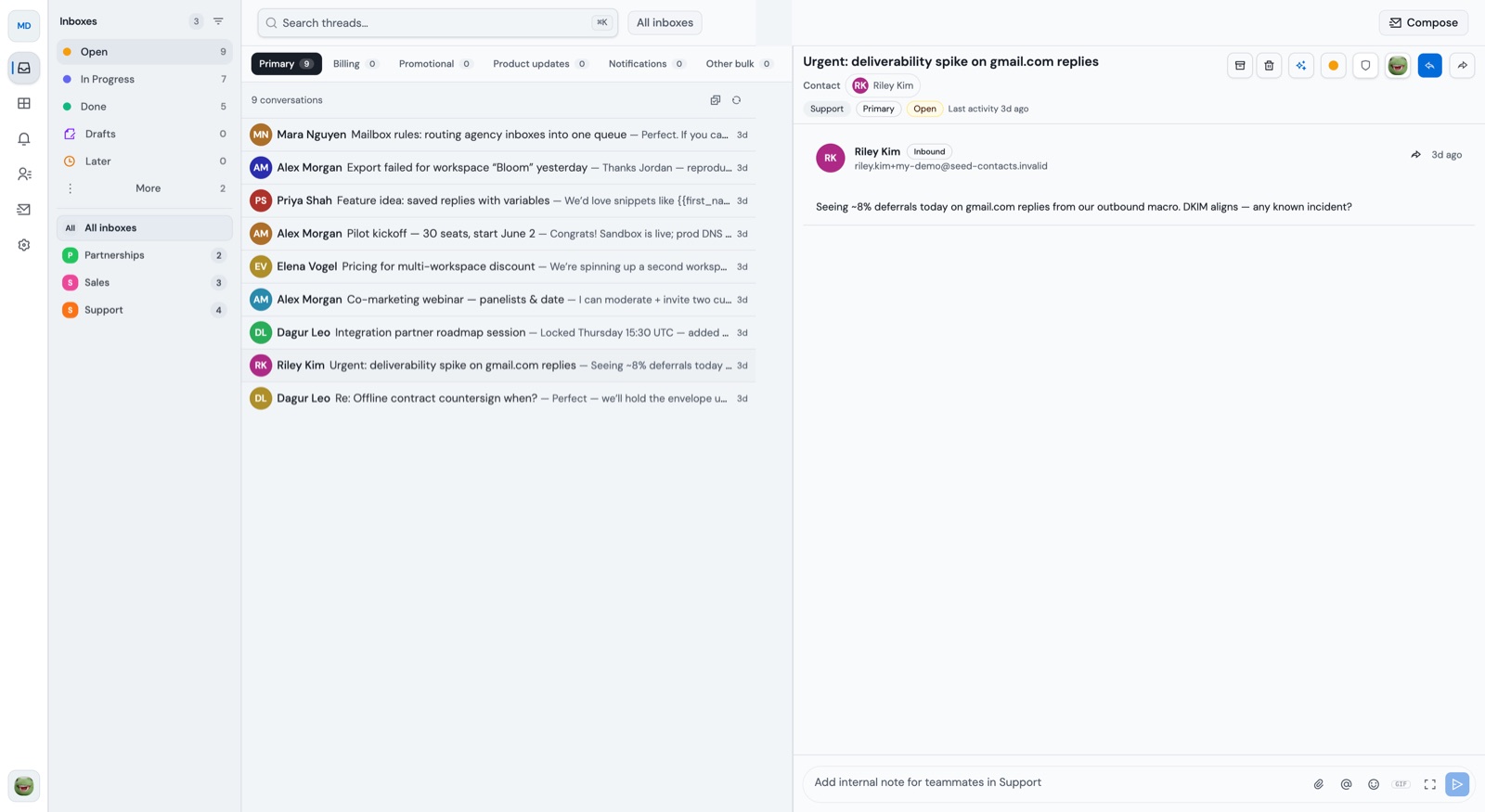
Purpose-built shared inbox tools (Repliqo is one; Front and Help Scout are the established players) connect to your existing address (a Gmail or Workspace mailbox, or an address on your own domain) and put a team workflow on top of it:
- One owner per conversation. Every email gets assigned, so "who has this?" has an answer.
- Statuses. Open, in progress, done: the inbox works like a queue instead of a pile.
- Internal notes. Discussion happens beside the customer thread, not in a parallel Slack channel.
- Draft ownership. Teammates can see someone is already writing a reply, which is the actual fix for double-replies.
- History that survives turnover. When someone leaves, their conversations and context stay.
The trade-off is cost: these tools are priced per seat, typically $15–30 per person per month. For two founders splitting an inbox, that can feel like a lot. For a five-person team doing real support volume, it's usually cheaper than the time lost to "did anyone answer this?"
Which one should you pick?
| Method | Best for | Breaks when |
|---|---|---|
| Shared password | 2 people, briefly | 2FA, security locks, any real volume |
| Gmail delegation | Assistant/owner pairs | More than a couple of delegates, queue-style work |
| Groups collaborative inbox | Visibility without workflow | Daily triage, accountability, customer-facing polish |
| Shared inbox tool | Teams working a queue | Budget is truly zero |
An honest rule of thumb: if two of you handle a handful of emails a day, delegation is fine. Set it up and move on. The moment you catch yourselves asking "did you reply to that?" more than once a week, or a customer gets two different answers, the built-in options are costing more than a tool would.
If you get to that point, Repliqo's Gmail shared inbox connects your existing Gmail or Google Workspace mailbox and adds assignments, statuses, internal notes, and draft ownership on top. Repliqo can also connect Outlook or host support@ on your own domain with guided DNS setup. Every workspace starts with a 14-day free trial for up to 5 people, no card required.